This guide assumes you've read Key concepts for the basic vocabulary.
As your first hands-on task in CattleIQ, we'll go through every field on the Add a New Animal form so you know what each one means.
You won't find much help text on the form itself. CattleIQ is built as an efficient daily driver and we didn't want to clutter the screen with hints that are only useful during onboarding, so the form stays clean and this guide does the explaining once.
To get started, click the + Add animal shortcut beneath Animals in the main menu. The form titled Add a New Animal opens, organized into three sections: Basic Information, Lineage, and Details & Events. Basic Information is where most of the work happens; the other two are optional but worth knowing.
Basic Information
Identifiers
The first field on the form, and the load-bearing one. Identifiers are how CattleIQ knows which animal is which.
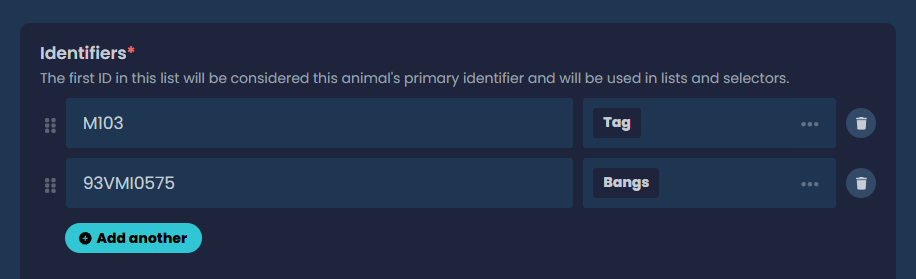
An identifier has two parts. The first is the ID: a tag label, a bangs number, EIN, etc. The second is the type: what kind of ID that is. Each pair has to be unique (M103 can show up with two different types, but not twice as M103/Tag, for example).
Most ranches keep several identifiers per animal. Click Add another to register more, and drag rows to reorder. The first in the list is the animal's primary—the one that shows up by default in lists, selectors, lineage, and reports. The rest are still searchable and on the record, just not first in line.
If the type you need isn't in the dropdown, add it under Settings > Ranch Account > Identifier Types first. The App tour and setup checklist covers that step.
Sex
The options are Female, Male, and Neutered male. Use Neutered male for steers.
Sex affects more than the record itself. It determines which fields show up on later forms, which event types can be recorded (a bull can't take a pregnancy check, for example), and whether the built-in Sire label is offered when picking labels.
Status
Three options: Active, Inactive, Reference.
- Active is for animals you currently have in the herd.
- Inactive is for animals you used to have but no longer do (sold, died, transferred). They stay on file with all their history; they just don't count against active herd stats.
- Reference is for animals you've never actually managed but need on file for the data to make sense. The classic case: an AI bull whose semen you're using but whom you don't own. He shows up in lineage and breeding records without inflating your operational stats.
Defaults to Active, which is what you'll want most of the time. Status can be changed later from the animal's record.
Labels
Pick any of the labels you've already set up on the Labels page. The dropdown is multi-select and searchable.
Labels are CattleIQ's flexible tagging system. You define what they mean (ownership, brand, pasture, breeding group, special-watch flags, anything you want to filter by later), and you apply them to whatever animals fit.
If the dropdown looks sparse, you probably haven't created your labels yet. The App tour and setup checklist walks through it, and Using labels covers the system in depth.
For female animals, the built-in Sire label is filtered out of this dropdown. Sire is a special-purpose label that flags an animal as available in sire pickers, so it's reserved for males.
Lineage
Lineage captures the animal's parents. None of it is required, but tracking Sire and Dam consistently is what powers multi-generation reports, breeding decisions, and ancestry views.
Sire
The animal's father. The dropdown filters to show only animals that qualify: male, with active or reference status, and carrying the Sire label.
If a bull you expect to see isn't in the list, the most likely reason is that he's missing the Sire label. Add it to his record.
Dam
The animal's biological mother. Filtered to females with active or reference status that are old enough to have bred (or unknown age).
Grafted dam
The cow who raised the calf, if she's not the biological dam. The classic case is a calf fostered onto a different cow after losing its mother. Same filter rules as Dam.
Surrogate dam
The cow who carried the pregnancy, if she's not the biological dam. Embryo transfer recipients are the most common case. Same filter rules as Dam.
Details & Events
Where you can add specific timeline entries and notes: Birth, Weight, Breeding, Pregnancy status, Note, Sale, or Death.
Which event types are offered depends on the animal's sex and status, since not every type fits every animal. A bull can't take a Pregnancy status check, for example. The form just doesn't show options that don't apply.
Adding events here is optional. You can do it later from the animal's record, but if you've got the birth date, a current weight, or a note handy, this is a fine place to put it in.
Events you add show up as a timeline in reverse chronological order, each one stamped with the date and the user who recorded it.
What's next
You've got a record! Go take a look at it in the Animals report.
The next things worth learning have their own guides: putting labels to work, building custom reports, and running workdays.